Tuning PC graphics settings for smooth play
Graphics menus are full of options. This guide explains the ones that matter most and gives you a simple routine for balancing looks and performance.
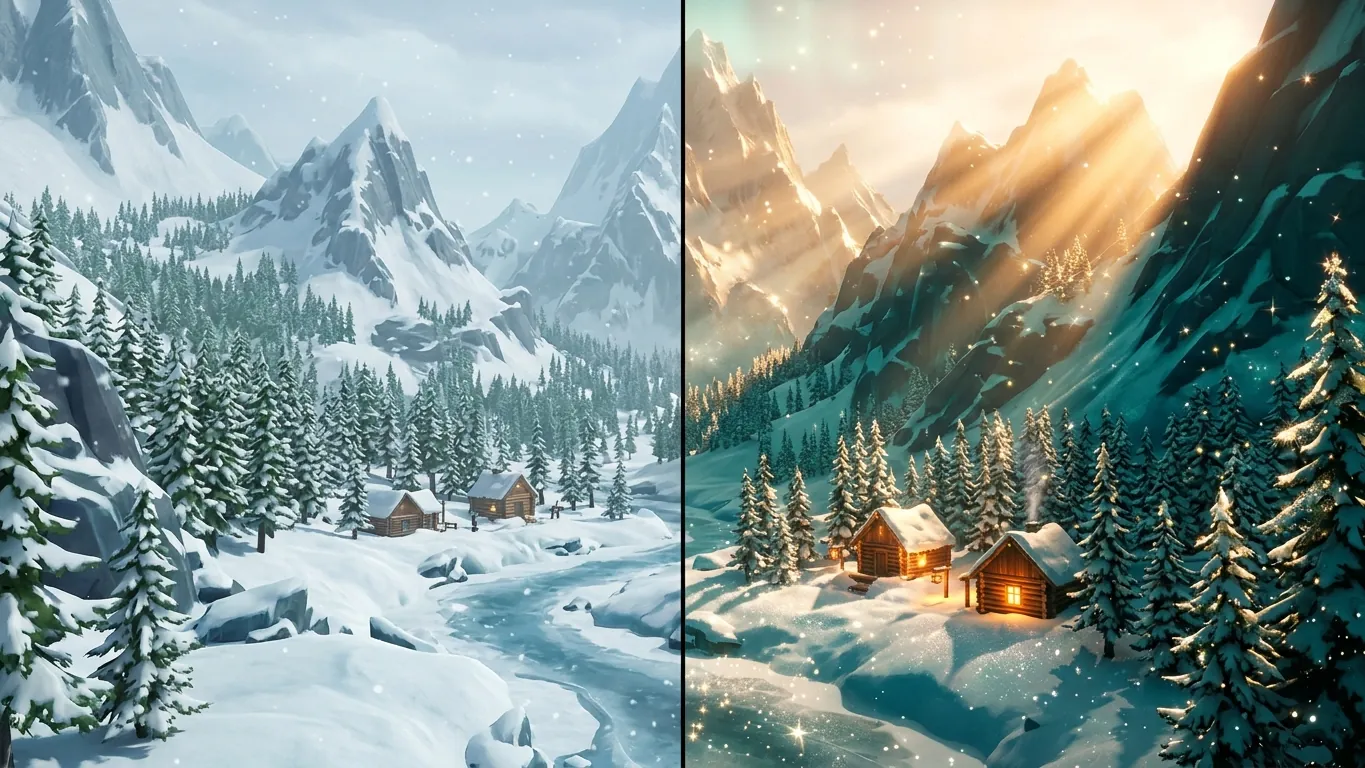
Start with resolution and frame rate
Resolution sets how many pixels the game draws. Running at your monitor's native resolution gives the sharpest image. Lowering it improves performance but makes the picture softer.
Frame rate is how many images per second you see. Higher frame rates feel smoother, especially in fast games. Slower games like strategy or cozy titles stay comfortable at lower frame rates. Decide your goal first. A steady frame rate usually feels better than a high one that jumps around. Many games let you cap the frame rate, which can also reduce heat and fan noise.
Shadows, lighting and effects
Shadows and advanced lighting often have the biggest impact on performance. Dropping shadows from the highest to a medium setting can free a lot of performance with only a small visual change. Effects like volumetric fog, reflections and ambient occlusion add atmosphere but also cost performance.
Try lowering these one at a time while watching the frame rate. You will often find one setting that costs a lot for little visible gain. That is the first one to reduce.
Textures and video memory
Texture quality controls how detailed surfaces look. It depends mainly on your graphics card's video memory rather than raw speed. If you have enough video memory, high textures add detail with little performance cost. If you exceed it, you may see stutters.
Some games show an estimate of video memory use in the settings. Keep it below your card's limit. If you are unsure, start at medium and raise it while watching for hitches.
Anti-aliasing and upscaling
Anti-aliasing smooths jagged edges. Different methods trade sharpness for performance. If an image looks blurry, try another method or add a sharpening option if the game offers one.
Many modern games include upscaling. The game renders at a lower resolution, then reconstructs a sharper image. Quality modes look closer to native resolution, while performance modes give more frames. Upscaling can be very helpful on mid-range hardware. Test each mode in a busy scene, because results vary by game.
A simple tuning routine
Use this routine whenever you start a new PC game.
- 01
Pick a preset
Start with the preset the game suggests or the one closest to your hardware.
- 02
Test a demanding scene
Play a busy area with many effects and watch for drops in smoothness.
- 03
Lower the heaviest settings
Reduce shadows, effects or resolution scale one at a time until play feels steady.
- 04
Raise what is cheap
If performance is comfortable, increase textures or other low-cost settings for extra detail.
Related articles
 Your PC game backlog does not have to feel like homework
An opinion piece on managing a PC game backlog: why it grows, how to sort it, when to drop a game and how to turn it into a personal top list.
Read more
 Setting up for comfortable PC gaming
Tips for a comfortable PC gaming setup: desk and chair position, monitor height, lighting, controls and breaks, so long sessions feel easier.
Read more
 How we build a Canadian top of PC games
See the criteria behind the Rebolat Games Canadian-style top list of PC games, from controls and pacing to replay value, and how to use the list well.
Read more