Reading PC system requirements without the confusion
Minimum and recommended specs can look like a foreign language. This explainer breaks them down so you can check whether a game fits your computer.
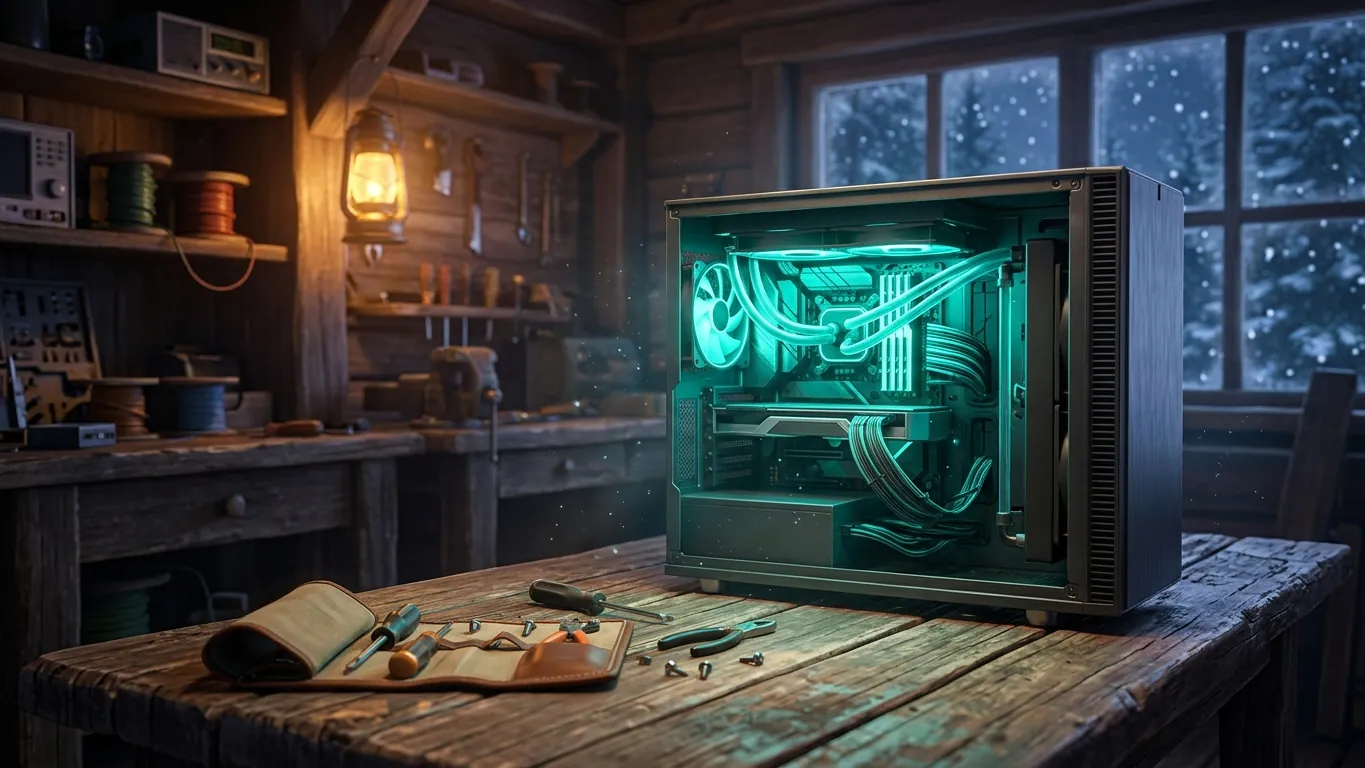
Minimum versus recommended
Most PC game store pages list two sets of requirements. Minimum means the game should start and be playable, usually at low settings and lower resolution. Recommended means the developers expect a smoother experience at higher settings.
If your PC sits between the two, you can often play comfortably by lowering a few options. If it falls below minimum, the game may not run or may be unpleasant. Treat these lists as guidance rather than a promise, because performance also depends on drivers, background programs and the scenes you play.
The processor and the graphics card
The processor, or CPU, handles game logic, physics and many characters on screen. Strategy and simulation games with large worlds often lean heavily on it. The graphics card, or GPU, draws the image. Detailed 3D games with rich lighting depend on it most.
To find your parts on a Windows PC, open the system information or device manager tools, or check the display settings for your graphics adapter. Write the model names down. Then compare them with the requirements. If you are unsure how two models compare, look up independent benchmark comparisons and focus on similar generations.
Memory and storage
Memory, or RAM, holds the data a game needs right now. If you have less than the game asks for, you may see stutters and long pauses. Closing browsers and other apps before playing frees some memory.
Storage matters for loading times and space. Modern games can take a lot of room, so check the listed size before you download. A solid state drive usually loads games much faster than an older hard drive. Some newer games list a solid state drive as a requirement, so read that line carefully.
Operating system and drivers
Requirements also name an operating system version. Running an older version may block installation or cause errors. Keeping your system updated helps.
Graphics drivers are just as important. Updated drivers often improve stability and performance in newer games. Download them from the official source for your graphics hardware. If a game crashes right after an update, rolling back to a previous driver version can help while you wait for a fix.
A quick check before you buy
Use this short routine every time you consider a new PC game.
- 01
List your parts
Write down your CPU, GPU, RAM amount and free storage space.
- 02
Compare with both spec lists
See if you meet minimum, recommended or something in between.
- 03
Look for a demo or refund policy
A demo lets you test performance. Read the store's refund policy before buying so you know your options.
Related articles
 Getting comfortable with strategy games on PC
Practical tips for starting strategy games on PC: learning the economy, scouting, using hotkeys, pacing your expansion and learning from each match.
Read more
 A beginner guide to wilderness survival games
A beginner guide to PC survival games: early priorities, managing cold and hunger, building shelter and staying calm when a run goes wrong.
Read more
 Why cozy games belong on a winter top list
An opinion piece on why cozy PC games suit long winter evenings, what makes a game feel cozy and how to pick a calm game that fits your routine.
Read more